 Skoop Filters
What it does, exactly.
Skoop Filters puts the Skroutz Skoop listings in one list, lets you narrow down your search, and notifies you when what you want shows up. Everything is here, grouped by what you are trying to do.
Next to each feature there is a “How to do it” link that takes you to the right spot in the guide.
Find listings, fast.
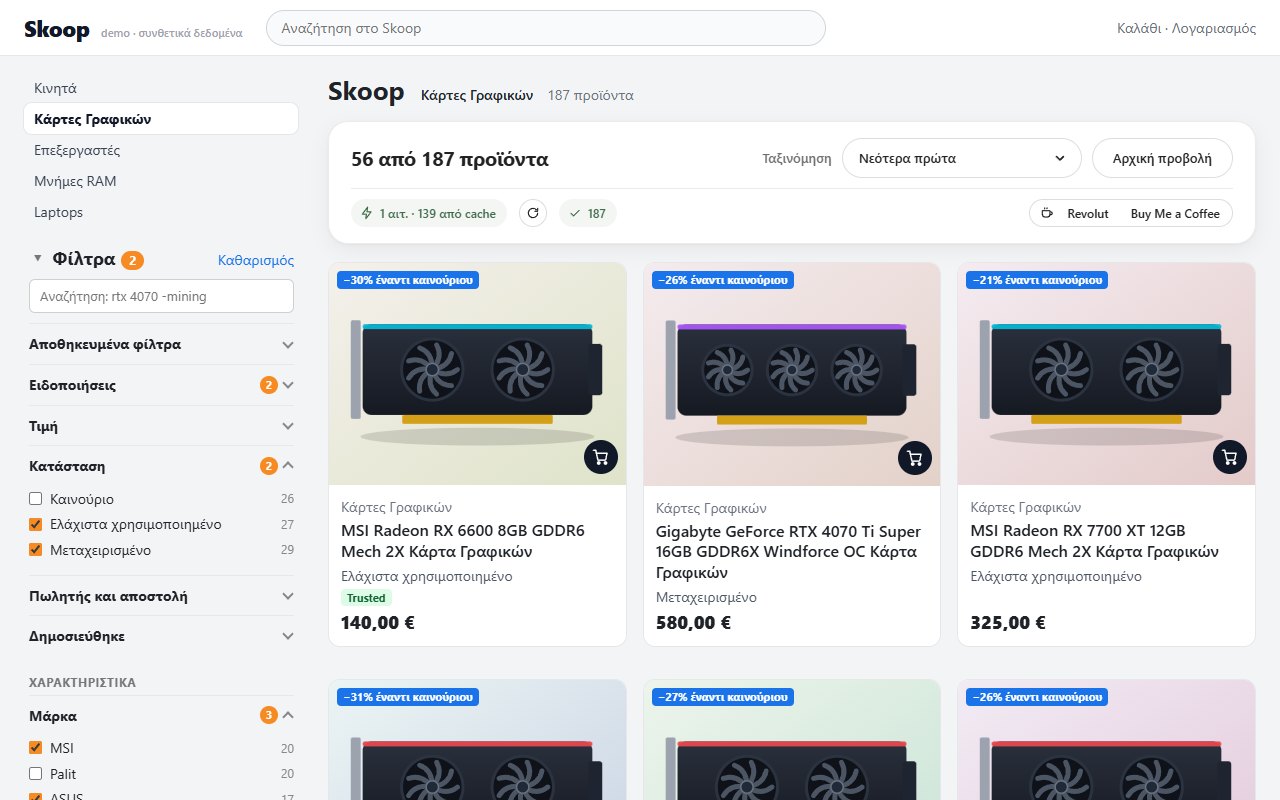
Open any category or search on Skoop and the list appears by itself, with the filter column next to it. You set up nothing.
One unified list
All pages of the category (up to 40) are downloaded at a gentle pace and shown together in one scrolling list, with the familiar cards and Skoop's own cart button.
How to do it for: one unified listFast refresh
It remembers the last time and downloads only the first pages again, usually just one, so the list opens right away.
How to do it for: fast refreshFull scan
A full check runs automatically every 30 minutes, and with the “Full scan” («Πλήρες σκαν») button you can run it yourself whenever you like, to catch price changes on older listings.
How to do it for: full scanSorting
Pick from the menu: “Newest first” («Νεότερα πρώτα»), “Lowest price” («Χαμηλότερη τιμή»), “Highest price” («Υψηλότερη τιμή»), “Best deal (vs new)” («Καλύτερη προσφορά (έναντι καινούριου)») or “Recent price drop” («Πρόσφατη πτώση τιμής»).
How to do it for: sortingPrice per unit
In each category you can also sort per unit, e.g. “€ per GB” («€ ανά GB»), and every card shows the same price, so you can compare fairly.
How to do it for: price per unitHow many are left
The bar above the list says “X of Y products” («X από Y προϊόντα»), so you know how many remain after your filters.
How to do it for: product counterLoading progress
It shows how far the loading of the details your filters need has come (and whether it is waiting or stopped because Skroutz slowed things down), with “Pause” («Παύση») and “Resume” («Συνέχεια») buttons.
How to do it for: loading progressLoad details for all
The “Load specs for all” («Φόρτωσε χαρακτηριστικά για όλα») button asks you to confirm first and tells you how many requests it will need.
How to do it for: load details for allBack to regular Skoop
The “Original view” («Αρχική προβολή») button takes you back to the regular Skoop page whenever you want.
How to do it for: back to regular Skoop
Narrow down your search.
In the “Filters” («Φίλτρα») section of the sidebar you find everything you need to keep only the listings that matter to you.
Price
You see how prices are spread in a chart and set a range with the slider or with the “From” («Από») and “To” («Έως») boxes.
How to do it for: priceCondition
You pick one or more of “Brand new” («Καινούριο»), “Lightly used” («Ελάχιστα χρησιμοποιημένο») and “Used” («Μεταχειρισμένο»).
How to do it for: conditionSeller and shipping
Keep only “Trusted seller” or listings with “Free shipping” («Δωρεάν μεταφορικά»). The second one appears once the product details have loaded.
How to do it for: seller and shippingWhen it was published
With “Published” («Δημοσιεύθηκε») you choose “Today” («Σήμερα»), “Last 3 days” («Τελευταίες 3 ημέρες»), “Last week” («Τελευταία εβδομάδα») or “Last month” («Τελευταίος μήνας»), and the extension finds the cutoff with a few targeted requests.
How to do it for: when it was publishedNew and sold
In the “Listings” («Αγγελίες») section you choose “Only new since my last visit” («Μόνο νέες από την τελευταία επίσκεψη»), “Only where I've sent an offer” («Μόνο όπου έχω στείλει προσφορά») or “Hide sold” («Απόκρυψη πωληθέντων»).
How to do it for: new and soldChanges since a scan
See which listings are new or changed price (↓ or ↑) since an earlier scan, meaning an earlier visit made more than 30 minutes after the one before: “Previous scan” («Προηγούμενο σκαν»), “N scans ago” («N σκαν πριν») or “All” («Όλες»).
How to do it for: changes since a scanNumbers next to every option
Every option shows how many results it will give, and the numbers update as you change the other filters.
How to do it for: numbers next to every optionListings still loading
Listings still waiting for their details are not quietly hidden: “Include listings still loading (+N)” («Συμπερίληψη όσων φορτώνουν ακόμα (+N)») adds them to the results.
How to do it for: listings still loadingClearing and collapsing
“Clear filters” («Καθαρισμός φίλτρων») resets them, “Show filters” («Εμφάνιση φίλτρων») and “Hide filters” («Απόκρυψη φίλτρων») hide the column, “Expand all sections” («Άνοιγμα όλων των ενοτήτων») and “Collapse all sections” («Σύμπτυξη όλων των ενοτήτων») control what you see, and a counter shows how many filters are active.
How to do it for: clearing and collapsing
Search with words.
In the “Search within results” («Αναζήτηση στα αποτελέσματα») box you type what you want and what you don't. The examples below work exactly as you see them.
The search box
Αναζήτηση: rtx 4070 -miningIt searches inside the results, ignores capital letters and accents, matches parts of words too, and “Clear search” («Καθαρισμός αναζήτησης») empties it.
How to do it for: the search boxWords that must be there
rtx 4070Finds only listings that contain all the words, in any order.
How to do it for: words that must be thereA word you don't want
-miningHides every listing that contains that word.
How to do it for: a word you don't wantExact phrase
"low profile"Looks for the words together and in that order.
How to do it for: exact phraseA phrase you don't want
-"low profile"Hides the listings that contain the whole phrase.
How to do it for: a phrase you don't wantPattern for advanced users
/rtx\s*40\d0/A pattern between two slashes catches spelling variations, like “rtx4070” and “rtx 4070”. Put “-” in front to exclude it. If it is invalid, it is ignored and flagged.
How to do it for: pattern for advanced usersAll combined
rtx 4070 -mining "low profile" /regex/You can combine all of the above in a single search.
How to do it for: all together
Filters that build themselves.
You set up nothing: in each category, the filters that make sense there appear on their own.
Automatic filters
Brand, model, memory, capacity, size and more are built from the titles and, once loaded, from the details of each listing, in any category.
How to do it for: automatic filtersProfiles per category
For things a title can't tell you, like the platform for games, sizes for clothes or the set for Pokémon, there are ready-made profiles. Without a profile, the automatic filters still work normally.
How to do it for: profiles per category
The 15 category groups with ready-made profiles
- PC hardware
- Phones, tablets and wearables
- Laptops
- Monitors
- Gaming and consoles
- Pokémon and other card gamesYu-Gi-Oh!, Magic, One Piece, Lorcana
- Clothing and shoes
- Books
- Home appliances
- Headphones and audioHeadphones, speakers, hi-fi
- Toys and LEGO
- Phone accessoriesCases by compatible device, chargers, power banks
- CollectiblesFunko, figures
- Music and filmVinyl, CD, DVD
- PhotographyCameras, action cams, drones
Never miss a listing.
Tell it what you are looking for and the extension keeps an eye on it for you. It works in the background while your browser is open, and you don't need to keep Skroutz open.
Create a notification
For a search
Pick your filters and press “Notify me about these results” («Ειδοποίησέ με για αυτά τα αποτελέσματα») in the “Notifications” («Ειδοποιήσεις») section. Whatever you see at that moment counts as already known and won't bother you.
How to do it for: notification for a searchFor one listing
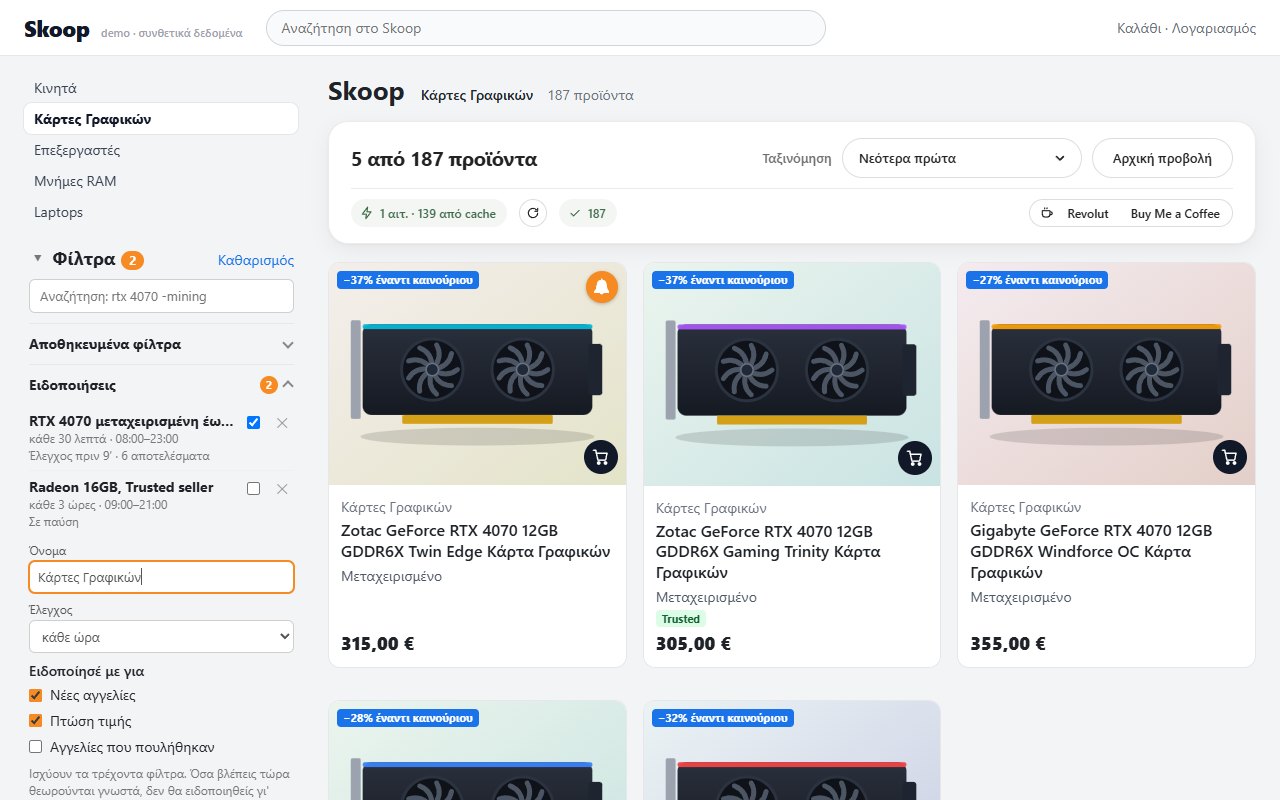
Press the 🔔 on the card's photo (hover over it first) and its price is checked, along with whether it is still there, until it sells.
How to do it for: notification for one listing
What it will notify you about
For a search
You choose among “New listings” («Νέες αγγελίες»), “Price drop” («Πτώση τιμής»), “Price increase” («Αύξηση τιμής»; optional) and “Sold listings” («Αγγελίες που πουλήθηκαν»), which also catches ones that disappeared.
How to do it for: what it notifies for a searchFor one listing
You choose among “Price drop”, “Price increase” and “Sold or removed” («Πουλήθηκε ή αφαιρέθηκε»).
How to do it for: what it notifies for one listingTarget price
For one listing you can also type a “Notify when the price drops to (€)” («Ειδοποίηση όταν η τιμή πέσει στα (€)»), which is optional.
How to do it for: target price
When it checks
How often
You choose anything from every 15 minutes to once a day.
How to do it for: how oftenQuiet hours
Under “Check hours” («Ώρες ελέγχου») you choose “All day” («Όλο το 24ωρο») or “Only during hours…” («Μόνο σε ώρες…») with “From” and “To”, e.g. 08:00–23:00, so nothing wakes you up.
How to do it for: quiet hoursIn the background
It checks while the browser is open, and when you open it, it makes up for the checks it missed.
How to do it for: in the background
Manage your notifications
Manage from the icon
Click the extension icon to see all your notifications. For each one you can rename it, make it “Active” («Ενεργή») or “Paused” («Σε παύση»), or delete it.
How to do it for: manage from the iconAnd from the sidebar
In the “Notifications” section you turn them on or pause them, change them with “Edit” («Επεξεργασία»), delete them, or open the list with their filters.
How to do it for: manage from the sidebarChecks whenever you ask
“Check now” («Έλεγχος τώρα») checks right away and answers “Check finished: no changes.” («Έλεγχος ολοκληρώθηκε: καμία αλλαγή.») or tells you how many changes it found.
How to do it for: check nowHistory
“History (N)” («Ιστορικό (N)») shows what the notification has recorded, and “Hide history” («Απόκρυψη ιστορικού») closes it.
How to do it for: historyTest
“Test” («Δοκιμή») sends a test notification so you can make sure you see them. If you don't, it tells you to check your system's notification settings for the browser.
How to do it for: testClick to open
When you click a notification, the listing opens, or the list with the filters already applied.
How to do it for: click on a notificationFilters that need details
If a filter needs each listing's details (e.g. chipset), the extension downloads them in the background for new listings, and if it can't finish in time, it notifies you at the next check.
How to do it for: filters that need detailsNo flooding
If a filter no longer applies, the notification shows a warning and sends nothing until you open the list so the details load again.
How to do it for: filter warning
Know if it's worth it.
Everything you need to judge a listing appears right on its card.
On the card
New
The “New” («Νέο») badge shows on everything that appeared since your last visit.
How to do it for: newPrice drop
A ↓ means the price went down, and “Recent price drop” puts those first.
How to do it for: price dropComparison with new
“−X% vs new” («−X% έναντι καινούριου») shows how much cheaper the listing is than the new price in the Skoop catalog, only when the comparison is reliable.
How to do it for: comparison with newCareful with the catalog
“⚠ catalog mismatch” («⚠ ασυμφωνία καταλόγου») warns you that the listing doesn't match the catalog product, so “vs new” needs a pinch of salt.
How to do it for: catalog mismatchPublication date
Every listing shows when it was published, estimated from the photo and corrected once its page loads.
How to do it for: publication date
Your offers
My offer
If you have sent an offer, the card says e.g. “My offer 400 €” («Η προσφορά μου 400 €») in bold orange, and the “Only where I've sent an offer” filter shows only those.
How to do it for: my offerCounter-offer
When the seller answers with a counter-offer, e.g. “Counter-offer 510 €” («Αντιπρόταση 510 €») in purple, the card shows the original price crossed out and the price you would pay, and the full text appears when you hover over it.
How to do it for: counter-offerWhen it updates
It is read from the listing page right after you send your offer, and then every 15 minutes while you wait for an answer.
How to do it for: when the offer updates
Keep it and share it.
Find your search again next time, or show it to someone else.
Saved filters
You name the filters you picked (“Filter name” («Όνομα φίλτρου»)) and find them again, separately for each list, and the x next to each one deletes it.
How to do it for: saved filtersA link that remembers your filters
The filters are written into the page address, so you can bookmark it or send it to a friend and they see exactly the same filters.
How to do it for: a link that remembers your filters
Make it yours.
In the “Settings” («Ρυθμίσεις») section of the sidebar you adjust how it looks. Everything saves itself.
Text size
You choose “Small”, “Normal”, “Large” or “Extra large text” («Μικρά», «Κανονικά», «Μεγάλα», «Πολύ μεγάλα γράμματα»).
How to do it for: text sizeProduct card size
You choose “Small”, “Normal”, “Large” or “Custom” («Μικρές», «Κανονικές», «Μεγάλες», «Προσαρμοσμένο»), depending on how many you want to see at once.
How to do it for: card sizeDensity
You choose between a “Comfortable” («Άνετη») and a “Compact” («Συμπαγής») layout.
How to do it for: densityFilters open from the start
You choose how many filter sections are open as soon as you arrive: “All” («Όλα») or a number.
How to do it for: filters open from the startBadges on the cards
With “Badges on cards (new, price drop, discount…)” («Badges πάνω στις κάρτες (νέο, πτώση τιμής, έκπτωση…)») you turn the badges off if you don't want them.
How to do it for: badges on the cardsLoading in the background
The “Load product specs in the background” («Φόρτωση χαρακτηριστικών προϊόντων στο παρασκήνιο») switch turns the automatic downloading of details on or off.
How to do it for: loading in the background
Private and polite.
It asks for no account, sends nothing anywhere, and requests Skroutz pages in a way that doesn't burden the site.
Privacy and respect
No account
There are no accounts, ads or usage statistics, and it is free.
Stays in your browser
Filters, settings and notifications are stored only on your computer, and the only thing that goes out to the internet is requests to www.skroutz.gr.
Minimal permissions
It asks for access only to www.skroutz.gr, storage for your settings, timers for the checks, and permission for notifications.
Gentle downloading
It requests at most two pages at a time, with random delays, and keeps copies in the browser so it doesn't ask for the same things again.
One download for everything
All tabs share the same download, and notifications for the same list share one check.
Backs off when asked
If Skroutz tells it to slow down, it stops requesting pages, and after three blocks in a row it pauses.
No tricks
It doesn't solve CAPTCHAs or get around protections, and there is no guarantee that Skroutz will never ask you to verify.
The limits, honestly
Desktop only
It works in Chrome and Firefox (from version 128) on a computer, not on your phone.
Not with a closed browser
Notifications don't run while the browser is closed, and when you open it, they make up for the checks they missed.
Very large lists
A list of more than 40 pages (about 1,900 listings) is cut off, and then “sold” notifications are not sent, because a listing may simply be beyond the limit.
Minimum check interval
It checks at most every 15 minutes, and if Skroutz blocks it, the interval doubles up to 6 hours.
On Firefox, one permission
On Firefox, if you see the message “Give permission” («Δώσε άδεια»), press the button to allow skroutz.gr.
How to do it for: permission on Firefox
Something not working? See the troubleshooting guide
Try it for free.
Install it, open Skoop, and press Notify me. That's all.
If it helps you, you can support its development with a coffee. It is entirely optional.